How to Set Up IPTV on TiviMate: Step-by-Step for Fire Stick and Android TV (2026)
TiviMate is the player most enthusiasts choose on Android TV and Fire Stick, and once it is set up it is a joy to use: a beautiful guide, smooth channel switching and excellent catch-up. The setup takes a few more steps than some apps because TiviMate is built around playlists, but this guide walks you through every one, on both Fire Stick and Android TV box, including how to add your line, load the guide, build favourites and decide whether the premium tier is worth it. Follow it in order and you will be watching with a full guide in a few minutes.
In this guide: what you need, installing on Fire Stick, installing on Android TV, adding your line, loading the guide, favourites and groups, free vs premium, troubleshooting, and a FAQ.
Before you start: what you need
| Requirement | Detail |
|---|---|
| An Android TV box or Fire Stick | TiviMate is built for these, not phones or Smart TVs |
| Your line from XtreamCube | Xtream Codes login or an M3U link |
| A stable connection | Ethernet or 5 GHz Wi-Fi for smooth playback |
If your device is a phone, iPhone or Smart TV, use Smarters Pro or IBO Player instead; see the player guides.
Installing TiviMate on an Android TV box
- Open the Google Play Store on your Android TV box.
- Search for TiviMate and install it.
- Open TiviMate and continue to adding your line below.
Installing TiviMate on a Fire Stick
TiviMate is not in the Amazon Appstore, so you sideload it with the Downloader app.
- On the Fire TV home, open Settings, then My Fire TV, then Developer options, and allow apps from unknown sources.
- Install the Downloader app from the Amazon Appstore.
- Open Downloader and enter the TiviMate APK address to download it.
- Install TiviMate, then open it and continue below.
Adding your line to TiviMate
TiviMate works with playlists. Use the Xtream Codes option where possible, because it loads the guide automatically.
- On first launch, choose to add a playlist.
- Select Xtream Codes (recommended) or M3U playlist.
- For Xtream Codes, enter the Server URL, Username and Password from XtreamCube. For M3U, paste the playlist URL.
- Give the playlist a name and confirm.
- Let TiviMate download the channels and guide.
No line yet? Start a free trial and enter the details here.
Loading the TV guide (EPG)
With an Xtream Codes playlist, TiviMate usually loads the EPG automatically. If the guide looks empty:
- Give it a minute on first launch; the guide downloads in the background.
- Open Settings, then EPG, and refresh or add the EPG source.
- Check the device time zone, or the schedule will show at the wrong time.
For more, see how to add EPG to IPTV.
Favourites and channel groups
TiviMate makes it easy to tame a large line. Mark the channels you watch as favourites, and reorder or hide groups so your list shows only what you want. This, plus the polished guide, is why many people prefer it on the big screen.
Free vs premium
| Free TiviMate | Premium adds |
|---|---|
| Live channels, guide, favourites, catch-up | Recording |
| One playlist | Multiple playlists |
| Everyday viewing | Scheduled recordings and more customisation |
For most people the free version is plenty. Premium is worth it if you want recording or multiple lines.
Troubleshooting
| Problem | Fix |
|---|---|
| Channels buffer | Use Ethernet, lower to HD. See freezing fixes |
| Guide empty | Refresh the EPG in settings; check the time zone |
| Playlist will not load | Recheck the Xtream Codes details or M3U URL |
| A stream looks rough | Try a different decoder in TiviMate’s playback settings |
Try TiviMate with a free line
The best way to judge TiviMate is to set it up with a real line. Start a free 24-hour trial with no payment details, get your Xtream Codes login by email, and add it as a playlist to see the guide and catch-up for yourself.
Frequently asked questions
Is TiviMate free? Yes, the core app is free. A premium tier adds recording and multiple playlists.
What devices does TiviMate work on? Android TV boxes and Amazon Fire Stick. For phones or Smart TVs, use another player.
How do I install TiviMate on a Fire Stick? Allow unknown sources, install the Downloader app, download the APK, then install and add your playlist.
Should I use Xtream Codes or M3U in TiviMate? Xtream Codes, because it loads the guide automatically.
Why is my TiviMate guide empty? Give it a minute, refresh the EPG in settings, and check your device time zone.
Can TiviMate record? Yes, with the premium tier.
Does TiviMate support catch-up? Yes, and it handles catch-up especially well. See our catch-up guide.
Is TiviMate better than Smarters Pro? On Android TV and Fire Stick, many prefer its guide. On other devices, Smarters Pro is more flexible.
Is there a free trial to test it? Yes, a 24-hour trial with no payment details.
More XtreamCube guides
By the XtreamCube team. Last updated: 2026. We test players on real devices and connections to keep this guide accurate.
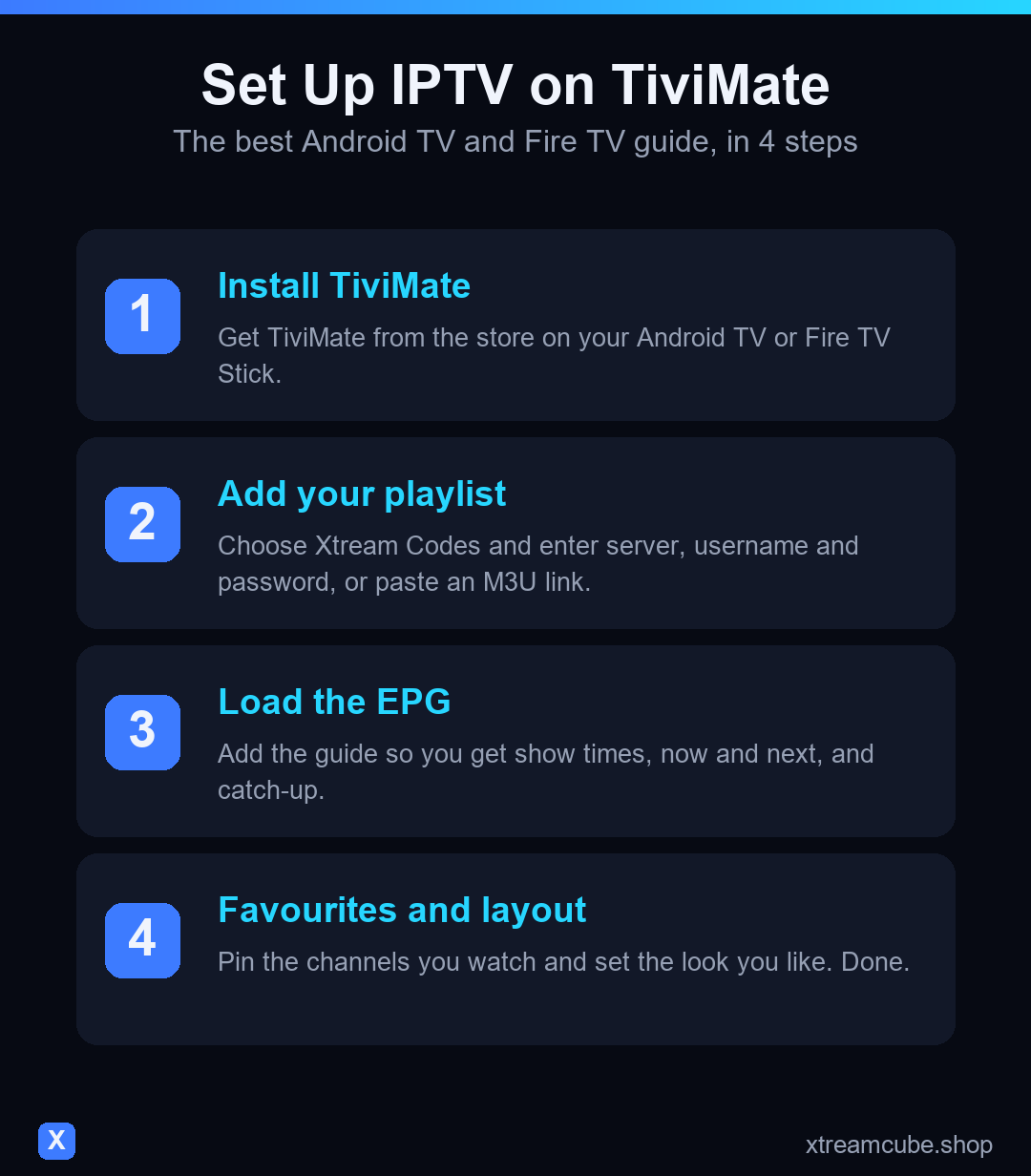
A clean TiviMate setup, step by step
TiviMate is the player most people settle on once they have tried a few, because its guide looks like a proper TV grid rather than a list. It runs best on Android TV, Google TV, a Fire Stick or an Nvidia Shield. Here is the short version that avoids the usual snags.
- Open TiviMate and choose Add playlist, then Xtream Codes (not M3U), it pulls your channels and the guide together.
- Enter the server URL, username and password from the email we send you. Copy and paste if you can, a single wrong character is the number-one reason a setup fails.
- Let it load the channel list, then let the EPG finish downloading before you judge anything.
- Hide the groups you will never watch so your home screen stays short.
The free version is fine to test with; TiviMate Premium adds multiple playlists, recording and a nicer layout, and it is a one-off the app sells, separate from us. If you edit channels a lot, the TiviMate Companion app lets you do it from a phone instead of a remote. Anything missing after a correct login is on our side, so tell support and we will fix the line, not the app.